Connecting to a cloud database
With Pedigree Publisher you have the option to use a desktop database file (SQLite) or a cloud database server (MySQL). This page describes how to move your existing SQLite database to MySQL or just connect to a MySQL database. SQLite is the normal desktop database file that Pedigree Publisher uses and has a .db file extension. MySQL is a database server that normally resides in the cloud and is commonly provided with most websites.
The reasons you might want to move your database to MySQL are as follows:
- You would be able to access your database from anywhere with an internet connection.
- You can give access to other people - useful for groups like breed clubs, registries and researchers. Using database permissions, users can have either full priviliges to read and modify data or just read data.
- You can install software like Pedigree Point on your website to allow visitors to your website to search for entries and view pedigrees, reverse pedigrees, sibling etc reports. Changes you make in Pedigree Publisher will immediately appear in Pedigree Point - there is no need to publish.
- Pedigree Point can be configured to allow open access or require a login. Pedigree Publisher makes it easy to manage accounts by creating, deleting or modifying them.
- The combination of Pedigree Publisher with Pedigree Point is the perfect option for breed clubs or registries.
There are two ways of connecting to your MySQL database:
- A normal "Remote MySQL" connection. This is quite secure as it requires an account and password plus your IP address must be on the remote access list. It does have the disadvantage that if you don't have a static IP address or you want to share access with others who don't have static IP addresses, or if you want to access it while travelling then access becomes difficult.
- Using "Connector" - a PHP file installed on your website. This requires an API key to access and will work from any IP address. This is more suited for group access.
The two methods are covered in the following sections.
Remote MySQL
Start Pedigree Publisher and use the FILE-Manage Connections... menu command. A dialog appears as below.
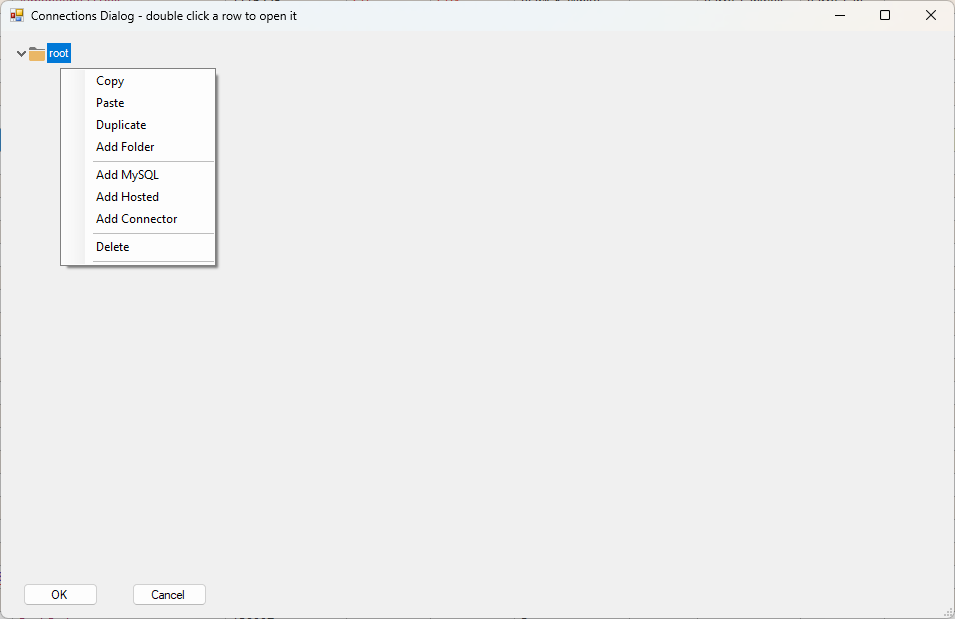
Right click and then click on the "Add MySQL" menu item and the dialog below appears.
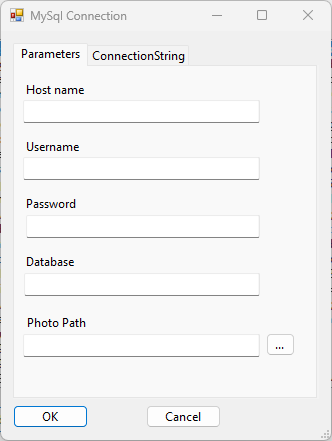
Fill in the fields and click OK. This will create the connection in the dialog. Now double click on that connection to start connecting. Note: you only have to do the above once. Pedigree Publisher will automatically connect using the last connection details, whenever you start it. Just some notes:
- Usually the database is located on the same computer as your website so you can usually enter the URL of your website but without the http(s)://, so for example use "mybreedsite.org" NOT "https://mybreedsite.org".
- The username, password and database are obtained when you create the database usually through the website's cPanel and phpMyAdmin.
- The Photo path is the folder where you keep local copies of your photos. Note if you add photos to that folder you will need to separately copy them to your website, typically using your cPanel File Manager or an FTP program.
- The MySQL server usually has extra security via its remote access list. To connect directly to MySQL you should have a static IP address. This address then needs to be added to the remote access list via the cPanel phpMyAdmin etc.
- If you do not have a static IP address then you can install the "Connector" which is simply a PHP file called "pp_connector.php". This comes with the Pedigree Point software package.
Using Connector
This requires the installation of a PHP file on your website. Follow these steps:
- Download the "pp_connector.php" file from the Pedigree Publisher download page. You will need a currently supported registration number to do this.
- Modify the file. There are five parameters that need to be changed and these are all near the start of the file. They are described below.
- Save the pp_connector.php file to your server. You will probably use the console File Manager and place the file in a folder called "pedpoint".
- Start Pedigree Publisher and use the FILE-Manage Connections... menu command. A dialog appears.
- Right click and then click on the "Add Connector" menu item and a dialog appears.
- Set the URL to the URL of your website plus the path to the connector file. The URL will look something like: https://mywebsite.com/pedpoint/pp_connector.php
- Set the Key to the value you used for the $pedigreeCloudConnectorKey in the pp_connector.php file.
- Click OK. This will create the connection in the dialog. Now double click on that connection to start connecting.
- Note: you only have to do the above once. Pedigree Publisher will automatically connect using the last connection details, whenever you start it.
The changes to the pp_connector.php file are as follows:
- $DatabaseHost = "localhost";// localhost usually works because the database is on the same server as your website. If not, use the URL of your database server.
- Change the following to what ever you set when you created the database: $DatabaseName = "xxx"; $DatabaseAccount = "xxx"; $DatabasePassword = "xxx";
- $pedigreeCloudConnectorKey = "xxxxx";// This is the "Key" used when connecting from Pedigree Publisher
Transferring data from your desktop database
This section only applies if you have an existing SQLite (*.db) database file that you want to transfer to MySQL. Now that your are connected to your MySql database, if it was just created then Pedigree Publisher adds some management tables but generally you will see nothing because no data has been loaded yet.
To transfer your existing SQLite .db database file to MySQL use the menu command: "TOOLS-Import Database...". A file open dialog appears, select your .db file and click OK. Pedigree Publisher will warn you about any existing tables in MySQL which will be replaced. Click OK and it will proceed to create copies of all the tables in your .db file and then upload the data into them. If the database is large, this may take some time.
After the data has been transferred, you should see your original data but this time coming from MySQL. Note that when you exit, Pedigree Publisher saves the connection data and will automatically open this MySQL database every time you start it.
Help
We can only provide basic support for problems associated with the above. We do however provide paid support. If you require us to install or trouble shoot a "Remote MySQL" then the cost is US$80. If you need us to install or trouble shoot a "Connector" then the cost is US$120. For either of these options, contact us via support@breedmate.com.